
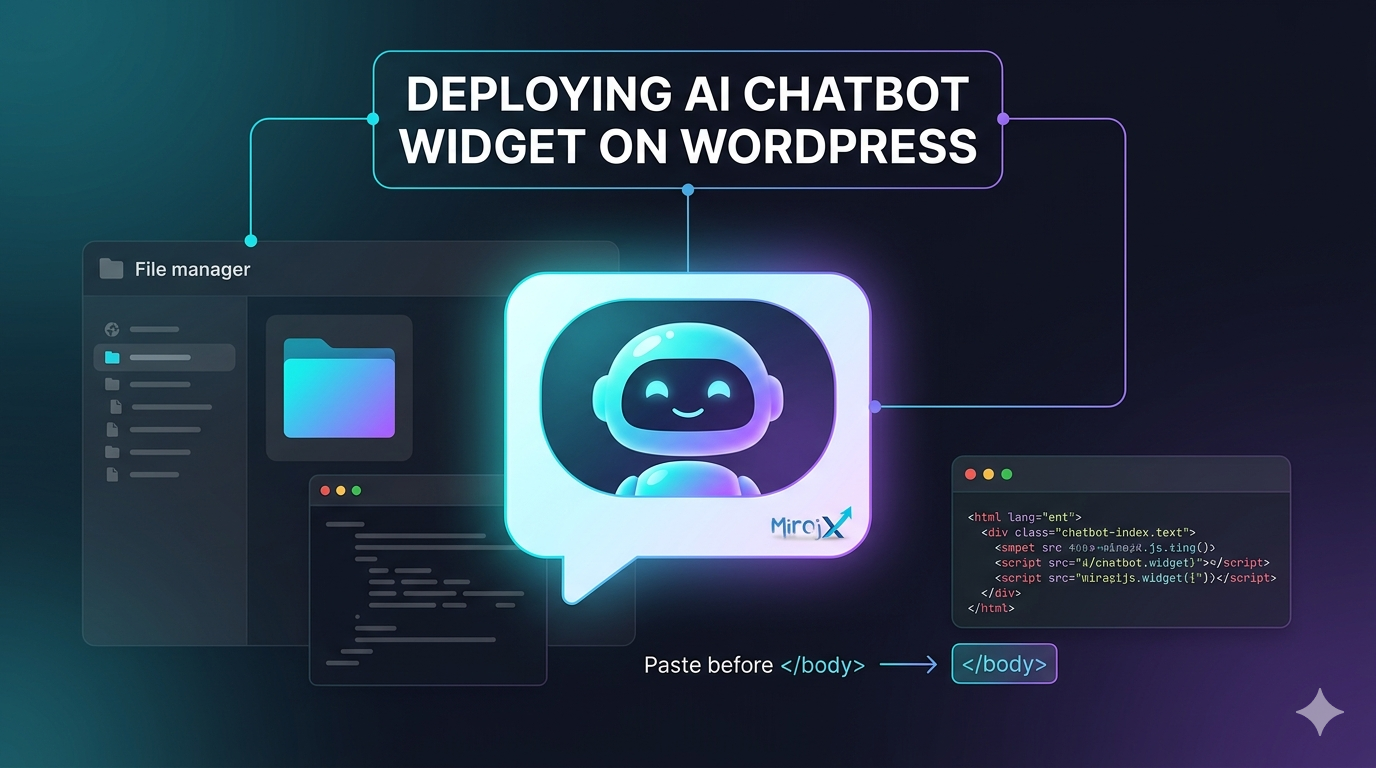
WordPress websites can add the MirajX chatbot in two common ways: through a header/footer plugin or by editing the theme footer file from cPanel. For most clients, the plugin method is safer. If you must use cPanel, edit carefully and keep a backup.
Copy your MirajX embed code
- Log in to your MirajX client dashboard.
- Open the widget or embed section.
- Copy the complete script code. If you do not see the full token, click Regenerate Token and copy the new code immediately.
Recommended option: use a WordPress footer plugin
- Log in to your WordPress admin dashboard.
- Go to Plugins, then Add New.
- Search for a trusted header and footer scripts plugin, like Code Snippet, for example.
- Install and activate the plugin.
- Open the plugin settings and find the footer, body end, or before
</body>section. - Paste the MirajX embed code there.
- Save changes and test the website.
cPanel option: edit the theme footer
- Log in to cPanel.
- Open File Manager.
- Open
public_html, or the folder where WordPress is installed. - Open
wp-content/themes. - Open the folder for your active theme. If you use a child theme, open the child theme folder.
- Find
footer.php. - Download a backup copy before editing.
- Click Edit.
- Find
</body>near the bottom. - Paste the MirajX code directly above
</body>, then save.
Example placement
<?php wp_footer(); ?>

<script
  src="https://your-mirajx-domain.com/widgets/mirajx_chatboot.js"
  data-webhook-url="https://your-mirajx-domain.com/api/runtime/chat"
  data-widget-config-url="https://your-mirajx-domain.com/api/runtime/widget-config"
  data-brand-name="Your Business Name"
  data-tenant-id="YOUR_TENANT_ID"
  data-agent-id="YOUR_AGENT_ID"
  data-widget-token="YOUR_WIDGET_TOKEN"
></script>
</body>
Important WordPress warning
If you edit the main theme directly, a future theme update may remove your change. A child theme or footer script plugin is safer because it is less likely to be overwritten during updates.
If the chatbot does not show
- Clear your WordPress cache plugin.
- Clear hosting cache, CDN cache, or Cloudflare cache if used.
- Open the website in an incognito/private browser window.
- Make sure the code is in the active theme, not an old inactive theme.
- Make sure the full script was pasted and the token line was not removed.
When to ask for help
Ask your web developer or hosting support for help if you cannot identify the active theme, if the website uses a page builder with custom templates, or if editing footer.php causes an error. If the widget token was shared by mistake, regenerate it in MirajX before testing again.