
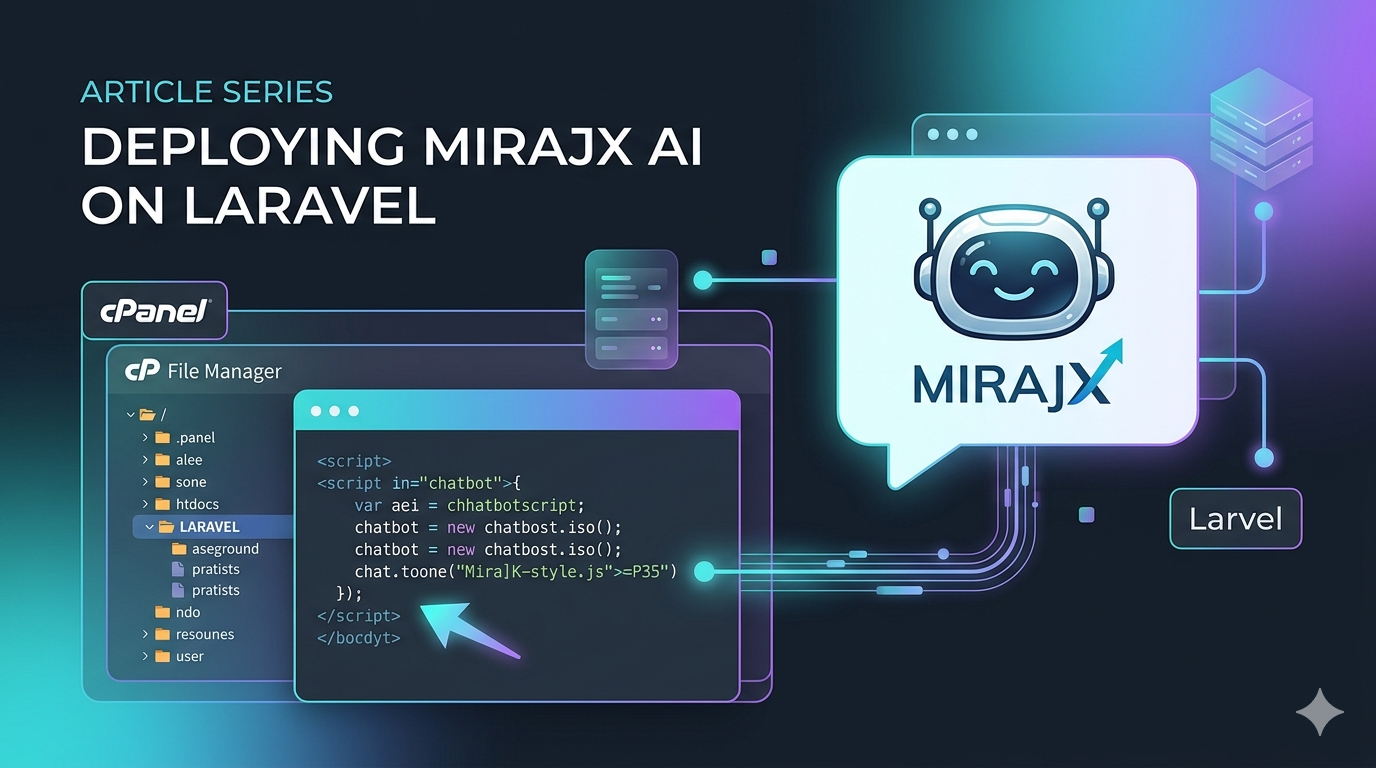
This guide explains how to add the MirajX chatbot to a Laravel website when your hosting account uses cPanel. You do not need to write new code. You only need to copy the embed code from your MirajX dashboard and paste it into the main website layout.
Before you start
- Log in to your MirajX client dashboard.
- Open the widget or embed section.
- If you do not see the full code, click Regenerate Token, then copy the full script code immediately.
- Keep the full code exactly as it is. Do not remove the token, website URL, tenant ID, or agent ID.
Where the code should go
For Laravel websites, the best place is usually the main Blade layout file, just before the closing </body> tag. This makes the chatbot appear on every page that uses that layout.
Step-by-step from cPanel
- Log in to your hosting cPanel account.
- Open File Manager.
- Open the website folder. In most hosting accounts this is
public_html. If your Laravel project is inside another folder, open that project folder. - Look for the Laravel views folder. Common locations are
resources/views/layouts,resources/views, or a theme folder insideresources/views. - Find the main layout file. It may be named
app.blade.php,layout.blade.php,master.blade.php, ormain.blade.php. - Before editing, download a backup copy of the file to your computer.
- Click the file, then choose Edit.
- Scroll near the bottom and find
</body>. - Paste the MirajX embed code directly above
</body>. - Save the file.
Example placement
<!-- Existing website content -->

<script
  src="https://your-mirajx-domain.com/widgets/mirajx_chatboot.js"
  data-webhook-url="https://your-mirajx-domain.com/api/runtime/chat"
  data-widget-config-url="https://your-mirajx-domain.com/api/runtime/widget-config"
  data-brand-name="Your Business Name"
  data-tenant-id="YOUR_TENANT_ID"
  data-agent-id="YOUR_AGENT_ID"
  data-widget-token="YOUR_WIDGET_TOKEN"
></script>
</body>
If the chatbot does not appear
- Open the website in a private or incognito browser window.
- Clear the Laravel cache if your hosting panel or developer gives you access to a terminal:
php artisan view:clearandphp artisan cache:clear. - Clear any website cache, CDN cache, or optimization plugin cache used by the site.
- Make sure the code was pasted inside the layout file, not inside a page that is not used by the public website.
- Make sure the code was not pasted as visible page text. It must be inside the HTML source near the bottom of the file.
Important safety notes
Only edit the layout file you need. Do not change Laravel files such as .env, composer.json, routes, controllers, or database files unless your developer asks you to. If you accidentally share the widget token with the wrong person, return to the MirajX dashboard and regenerate the token.