
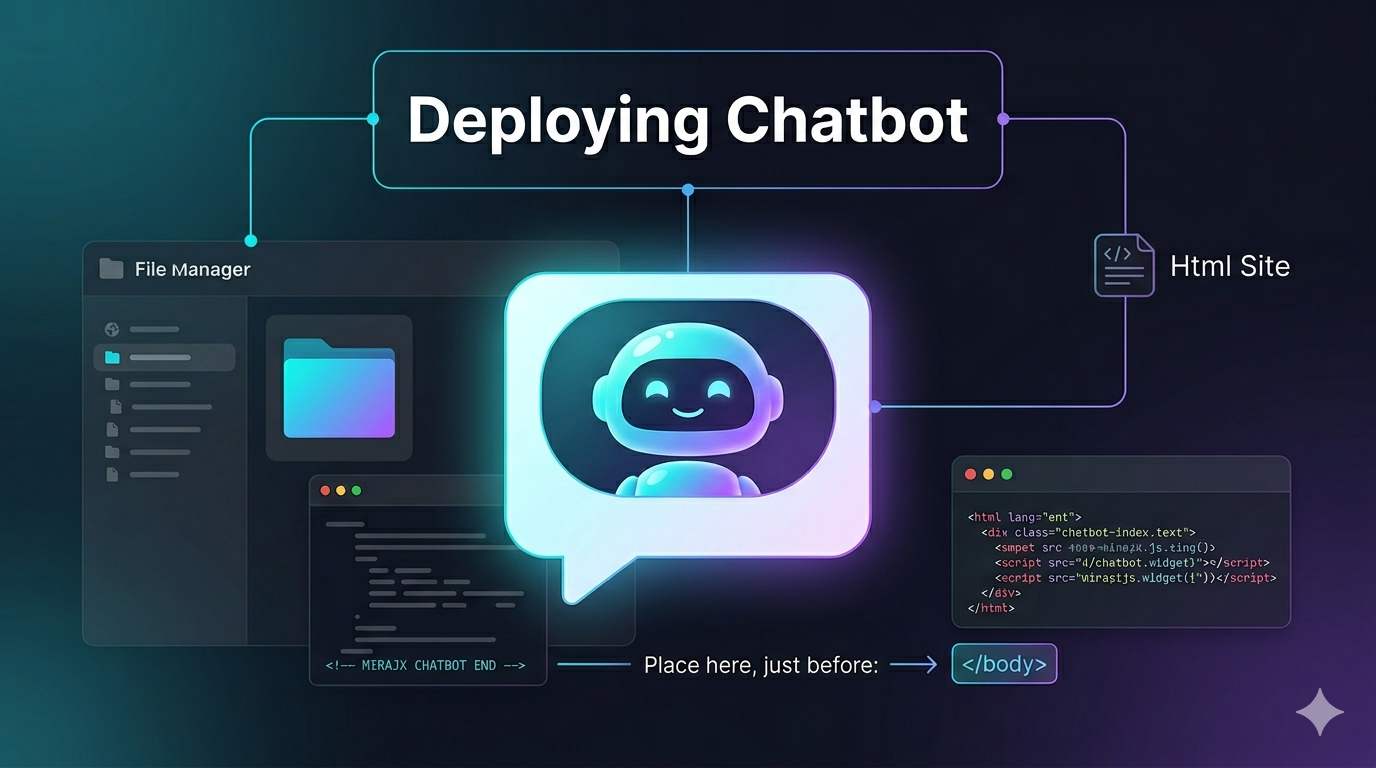
If your website is built with normal HTML files, adding the MirajX chatbot is usually very simple. You will paste one script before the closing </body> tag of your website pages.
Get your MirajX embed code
- Log in to your MirajX client dashboard.
- Go to the widget or embed section.
- Copy the full embed script. If the token is not visible, click Regenerate Token and copy the new code.
- Do not edit the code unless MirajX support asks you to.
Step-by-step from cPanel
- Log in to cPanel.
- Open File Manager.
- Open
public_html. This is usually the main website folder. - Find your homepage file. It is usually
index.htmlor sometimesindex.htm. - Download a backup copy before changing anything.
- Select the file and click Edit.
- Scroll to the bottom and find
</body>. - Paste the MirajX script directly above
</body>. - Save the file.
Should you add it to every page?
If your website has only one file, adding the script to index.html is enough. If your website has many separate pages such as about.html, services.html, and contact.html, add the same script before </body> in each page where you want the chatbot to appear.
Example placement
<footer>
  Your footer content
</footer>

<script
  src="https://your-mirajx-domain.com/widgets/mirajx_chatboot.js"
  data-webhook-url="https://your-mirajx-domain.com/api/runtime/chat"
  data-widget-config-url="https://your-mirajx-domain.com/api/runtime/widget-config"
  data-brand-name="Your Business Name"
  data-tenant-id="YOUR_TENANT_ID"
  data-agent-id="YOUR_AGENT_ID"
  data-widget-token="YOUR_WIDGET_TOKEN"
></script>
</body>
</html>
How to test
- Open your website in a private or incognito browser window.
- Wait a few seconds for the page to finish loading.
- Look for the chat bubble, usually at the bottom corner of the website.
- Send a short test question to confirm the assistant replies.
Common mistakes
- Pasting the code inside the visible page content instead of near
</body>. - Editing the wrong folder. Some hosting accounts have more than one domain folder.
- Adding the code only to one page when the site uses many separate HTML pages.
- Accidentally deleting one line from the script.
Safety note
Always keep a backup of the original file. If the page breaks after editing, restore the backup and try again carefully. If your token was shared with someone outside your team, regenerate it from the MirajX dashboard.